To mirror objects across an axis:
1. Select the object(s) to mirror.
2. Click the Mirror tool from the Basic palette.
To select additional objects or to change the currently selected objects to mirror, press and hold the Alt key (Windows) or Cmd key (Mac) while shift-clicking or click-dragging the mouse around them to marquee select them; the Selection tool is activated in boomerang mode while the Alt or Cmd key is being pressed.
3. Select Standard or Duplicate from the Tool bar, depending on whether the original object is to remain in place.
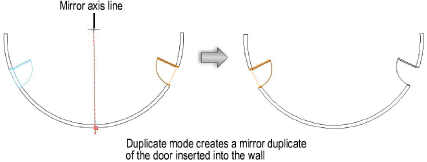
4. Click to set the beginning of the axis line. As you begin to drag the mouse to create the axis line, a preview of the mirrored object’s placement displays. Click again to set the end of the line. For objects in walls (such as doors or columns), the axis line is constrained to be perpendicular to the wall. 2D objects are previewed as vectors without fill and 3D objects are previewed in Wireframe mode, regardless of the current render mode.
The object or its duplicate is mirrored on the opposite side of the plane created by projecting the axis line onto the working plane.
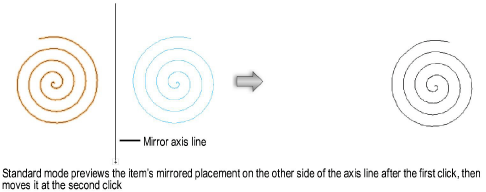
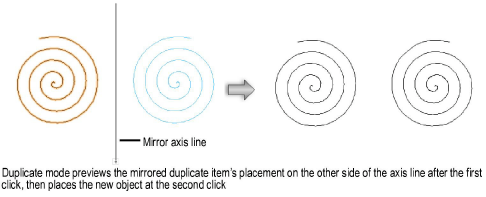
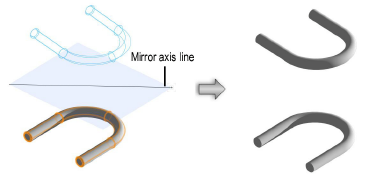
The end points of the mirror axis line must occupy distinct points on the active working plane. In 3D views, mirroring will not work if the two points are coincident on the active plane.
For objects in walls, the mirrored object is placed in the wall, if there is room for it.
~~~~~~~~~~~~~~~~~~~~~~~~~