The Offset tool either creates a duplicate object offset from the original, or offsets the selected object from its original location. Use this tool to easily create parallel objects, such as lines and walls. Also use it to produce a larger or smaller version of closed objects, such as ovals and connected walls. NURBS surfaces are offset by the offset distance along the surface normal direction.
The Offset tool can be used with the following objects.
|
● NURBS curves |
● NURBS surfaces |
|
● Walls |
● Revision clouds |
|
● Open 2D objects (arcs, lines, polylines) |
● Closed 2D objects (circles, ovals, rectangles, rounded rectangles, polylines, polygons) |
|
● Hardscapes |
● Massing models |
● Property lines |
|
● Seating layouts |
● Site modifiers |
● Spaces |
|
● Stipples |
● Plants |
● Redlines |
The Offset tool has four modes, which are also options in the Offset Tool Preferences dialog box.
The 2D conversion resolution field, on the Edit tab of the Vectorworks Preferences dialog box, adjusts the degree of smoothing. The higher the conversion resolution, the higher the degree of smoothing, which produces a more accurate offset of objects. For more information on 2D conversion resolution, refer to Edit Preferences.

To offset one or more objects:
1. Select the object(s) to be offset, if desired.
2. Click the Offset tool from the Basic palette.
3. Click Preferences from the Tool bar.
The Offset Tool Preferences dialog box opens.
Click to show/hide the parameters.
4. Specify the desired preferences and click OK.
To select additional objects or to change the currently selected objects to offset (or duplicate and offset), press and hold the Alt key (Windows) or Cmd key (Mac) while shift-clicking or click-dragging the mouse around them to marquee select them; the Selection tool is activated in boomerang mode while the Alt or Cmd key is being pressed.
5. Depending on the offset preferences, do one of the following:
Offset Method |
Description |
Offset by Distance |
|
Click on objects to offset |
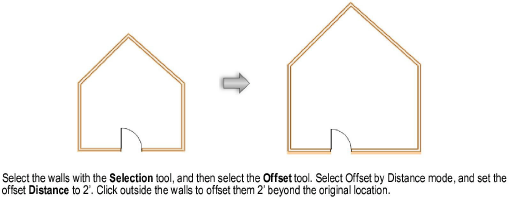
Select the object to be offset; the object is highlighted. Click to specify the offset location relative to the selected object, and to place the offset object. To continue offsetting objects, click another object to highlight it, and then click again to indicate the offset location. |
Offset selected objects |
Click in the drawing to specify the offset location relative to the originally selected object, and to place the offset object. The offset object is now selected; to offset from that object, click again to indicate the offset location. |
Offset by Point |
|
Click on objects to offset |
Select the object to be offset; the object is highlighted. Move the mouse to adjust the offset preview if necessary, and then click to place the offset object. To continue offsetting objects, click another object to highlight it, and then click again to indicate the offset location. |
Offset selected objects |
Click to set the offset point (move the mouse to adjust the offset preview if necessary), and then click again to place the offset object. The offset object is now selected; to offset from that object, click again to indicate the offset location. |
Depending on the offset preferences, either a duplicate object or the original object is placed at the offset location.

Click here for a video tip about this topic (Internet access required).