从主服务器管理屏幕单击 Manage Windows Service。
打开 Service Definition 屏幕。
输入注册服务所需的数据。
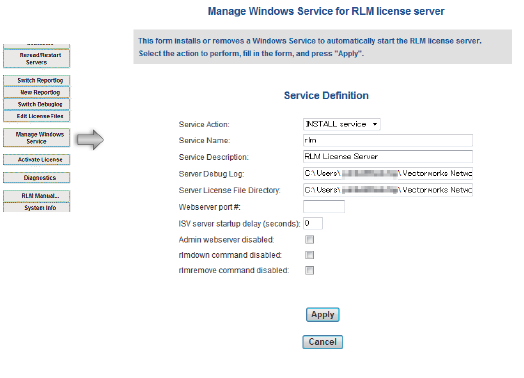
参数 |
描述 |
|
Service Action |
选择 INSTALL service 安装为 Windows 服务,或选择 REMOVE service 将其从 Windows 服务列表删除 |
|
Service Name |
输入将显示在 Windows 服务列表中的名称。默认值为 rlm。 |
|
Service Description |
输入服务的说明。默认值为 RLM License Server。 |
|
Server Debug Log |
为服务器指定 Debug 日志的位置。默认是和 rlm.exe 所在相同的路径。请参阅 Debug 日志。 |
|
Server License File Directory |
指定许可证文件的位置。默认是和 rlm.exe 所在相同的路径。 |
|
Webserver port # |
如果更改 Administration 屏幕的端口号,请指定 Administration 屏幕端口号(请参阅 修改管理屏幕端口号) |
|
ISV server startup delay (seconds) |
如果要在延迟后启动 ISV 服务器(Vectorworks Site Protection 服务器的授权部分),请在此处指定秒数。此设置预防 Vectorworks Site Protection 服务器缓慢启动造成的任何问题。 |
|
Admin webserver disabled* (通常不使用) |
选择禁用管理屏幕(所有操作必须通过命令提示符界面开展) |
|
rlmdown command disabled* (通常不使用) |
选择禁用关闭 ISV 服务器的功能。SHUTDOWN 按钮不出现在 Administration 屏幕上。 |
|
rlm remove command disabled* (通常不使用) |
选择禁用从用户移除当前使用的许可证并返回 Vectorworks Site Protection 服务器的功能。REMOVE 按钮不出现在 Administration 屏幕上。 |
* 要暂时禁用带星号 (*) 的参数,请停止 Windows 服务并运行 rlm.exe。
从 Service Action 列表选择INSTALL service。
单击 Apply 安装服务。
设置完成时,重新启动机器。