Creating
stipple objectsCreating
stipple objects
Creating
stipple objectsCreating
stipple objectsMode |
Tool |
Tool set |
Modes for the Polyline tool |
Stipple
|
Dims/Notes |
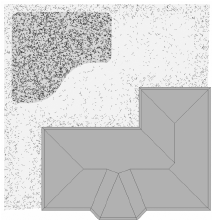
The Stipple tool creates a random pattern (different shapes, sizes, and, optionally, colors) within a defined boundary, which resembles a hand-drawn shaded effect. To create a stipple object, either use the Stipple tool, or draw a polyline and then run the Create Objects from Shapes command (see Creating objects from shapes).
To create a stipple object:
1. Click the tool and mode, and then click Preferences to set the default Stipple tool parameters.
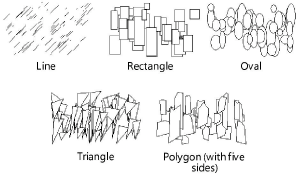
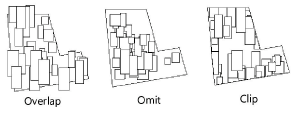
The Define Stipple Pattern dialog box opens. Up to two different shapes can be specified to define the stipple pattern.
 Click
to show/hide the parameters.
Click
to show/hide the parameters.
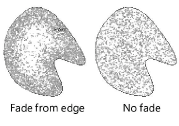
Both the Color Stipple Shapes and Fade Stipple from Edge options are processor-intensive actions and can significantly increase stipple regeneration time.
2. Click to set the object’s start point.
3. Click to set the end of the segment and the beginning of the next. Continue drawing segments in this manner until the object is complete.
4. Click a second time at the start point to complete a closed polyline object, or double-click to complete an open polyline object.
To edit the parameters for a stipple object, click the Stipple Settings button from the Shape tab of the Object Info palette (the parameters are described in Creating stipple objects).
To modify default stipple settings, click the Preferences button on the Tool bar.
To reshape a stipple object, double-click it to activate the Reshape tool. Select the object handles to reshape the stipple object boundary. For more information, see Reshaping objects.
Once a stipple is set to the desired appearance, you can save the pattern as a symbol for future use. When you select the stipple from the Resource Manager, all the settings are preset, and you can draw a new shape with that stipple pattern.
To save a stipple pattern:
1. Select a stipple object.
2. From the Object Info palette, click Save Stipple.
The Enter Text dialog box opens.
3. Enter a unique name.
The stipple pattern is saved as a symbol in the Stipples folder, in the active file.
4. To use a saved stipple pattern, double-click it from the Resource Manager, click a drawing mode from the Tool bar, and draw the new stipple object.
For more information on the Polyline tool modes, see Creating polylines.