 Showing gobo projectionsShowing gobo projections
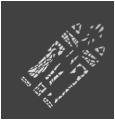
The gobo textures and color of a selected lighting device can be projected in a rendered simulation. This rendered image allows you to preview the effect of the gobo texture.
To be able to project a gobo texture, the lighting device must:
● Have one or two gobo textures specified.
● Have its associated light source turned on (either right-click the light, and select Turn On from the context menu, or turn on the light from the Visualization palette).
● Have Draw Beam deselected in the Object Info palette.
The following requirements must be met:
● The design layer containing the lighting device with the gobo texture must contain 3D geometry upon which to project the texture, and the 3D object must not have a perfectly black fill (which absorbs all light).
● Use either Fast Renderworks or Custom Renderworks.
For Custom Renderworks, at a minimum, select Shadows and Textures in the custom Renderworks settings.
To select the custom settings, select View > Rendering > Custom Renderworks Options. For more information on Custom Renderworks settings, see Custom Renderworks options.
To project a gobo texture:
1. Make all the settings and meet all the requirements described in Inserting a gobo projector, and Gobo projection requirements.
2.Select View > Rendering > Custom Renderworks.
~~~~~~~~~~~~~~~~~~~~~~~~~