Placing a Camera Match shadow
|
Tool |
Tool set |
|
Camera Match Shadow
|
Visualization |

Shadows and shading can be added to the rendering with the Camera Match Shadow tool.

|
Mode |
Description |
|
Polyline creation options |
Specifies the method for drawing the polyline shape for the shadow |
|
Fillet Radius
|
Sets the fillet radius when the Arc Vertex mode is selected |
|
Preferences
|
Opens the object properties dialog box to set the default preferences for camera match shadows |


To place a Camera Match shadow:
While in the viewport Edit Annotation mode, click the tool.
Draw a polyline object over the area of the model that needs a shadow.
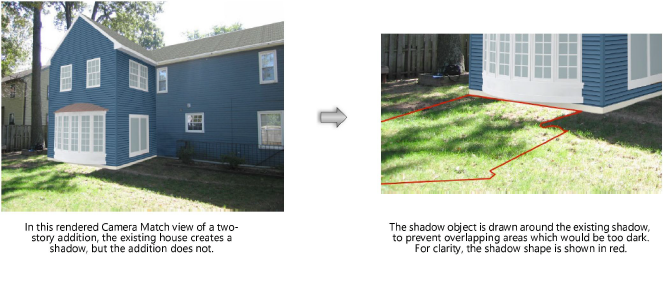
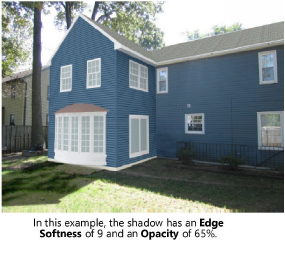
The settings of a selected Camera Match shadow can be edited from the Object Info palette.
Click to show/hide the parameters.Click to show/hide the parameters.
|
Parameter |
Description |
|
Edge Softness |
Sets the Edge Softness of the selected shadow object. Select a value from 0–9. |
|
Opacity |
Enter an opacity percentage (0–100) for the shadow |
|
Use Fill Color as Shadow Color |
Fills the shadow object with the color from the Attributes palette. The color and opacity options can be combined to tint the added shadow to match those in the photo. |
|
Line Mode |
Gives a shadow object no fill and places a shadow only along a path of the specified Line Width |
|
Convert Path to Outline (Line Mode shadow required) |
Converts a selected Line Mode shadow object into a regular shadow (Line Mode deselected), while giving it a path that matches the outline shape of the Line Mode shadow. This makes it easy to draw linear-shaped shadows that need to be edited to add variations to their thickness. Once converted, the shadow cannot be converted back to Line Mode. |
