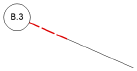
Grid line preferences
These settings are available in the following locations:
Grid Line Preferences dialog box (creating an object)
Grid Line Settings dialog box (editing an object)
Object Info palette (editing an object)
Grid Line Style dialog box (creating or editing a style)
For styled objects, only parameters set by instance can be edited from the Grid Line Preferences dialog box and Grid Line Settings dialog box. For more information about using and creating styles, see Concept: Plug-in object styles.
The grid line's path can be manually edited as described in Editing the grid line path.
Click to show/hide the parameters.Click to show/hide the parameters.
|
Parameter |
Description |
|
Use Style |
From the Resource Selector, double-click a resource to activate it, or click Unstyled. If a styled object is converted to unstyled, the current values are retained, but all parameters are set to By Instance to allow editing. |
|
Next Grid Label |
Sets the Label value of the next grid line to be drawn. This value automatically increments as described in Grid label increments to compose a grid sequence, but it can also be manually set to begin a new grid sequence; see Creating a grid sequence. |
|
Do Not Include Characters |
Enter any non-numeric characters that should be skipped when the Label automatically increments for newly placed grid lines. This option is not available for numeric series. |
|
Grid Line Class |
To control appearance and visibility, select a class from the list of classes present in the drawing, or create a new class for the grid line portion of the object. Select <Grid Line Class> to place the grid line portion of the object in the same class as the grid line object. |
|
Grid Line Weight/Style/Pen Color |
Set the weight, line type, and pen color of the grid line portion of the object |
|
Shoulder Length at Start/End |
Enter the shoulder length at the start and end of the grid line |
|
Shoulder Line Class |
To control appearance and visibility, select a class from the list of classes present in the drawing, or create a new class for the shoulder line. Select <Grid Line Class> to place the shoulder line in the same class as the grid line object. |
|
Shoulder Line Weight/Style/Pen Color |
Set the weight, line type, and pen color of the shoulder line
|
|
Show Bubble at |
Select whether to show the bubble at only the start point or end point of the grid line, at both ends, or to not show a bubble |
|
Bubble Scale Factor |
Enter the scale factor for the bubble |
|
Bubble Layout |
On the Grid Line Settings dialog box and Grid Line Style dialog box, click to edit the layout; see Editing the grid line bubble layout. On the Grid Line Preferences dialog box, this parameter indicates if the bubble layout is by class or by instance, but it cannot be edited. |
|
Object Info palette only |
|
|
Style |
Replace, edit, or remove the current style, or (for unstyled objects only) create a new plug-in style (see Custom plug-in object styles without catalog options). Editing a style changes all instances in the file that use the style. |
|
Hide style parameters |
Hides the parameters that are set by style; these cannot be edited from the Grid Line Settings dialog box or Object Info palette |
|
Settings |
Opens the Grid Line Settings dialog box to edit the parameters |
|
Label |
Displays the grid line's label; you can relabel a grid line, but you cannot assign it a label that is already in use by another grid line. If you relabel a grid line, it is automatically removed from the grid sequence; see Creating a grid sequence. |
|
Note |
Enter a note for this grid line if desired; the note can be added to the bubble layout |
|
Add elbow to shoulder(s) |
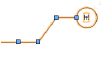
Add an elbow to the shoulder lines; the shoulder line remains straight until you move an elbow handle to change the alignment
|
|
Edit Bubble Layout |
Opens the bubble layout in object editing mode; see Editing the grid line bubble layout |
|
Grid Line Instances |
Opens the Grid Line Instances dialog box to control grid line visibility in viewports; see Grid line instance visibility in viewports |
|
Vertex parameters |
Edits the vertices of the path object that the grid line is based upon; see Editing vertex-based objects |