Fillet tool
|
Tool |
Tool set |
Shortcut |
|
Fillet
|
Basic |
7 |

The Fillet tool adds a highly specific fillet (arc) between two objects in the drawing, making each of the fillet’s end points tangent to one of the objects. Apply fillets to lines, rectangles, polygons, polylines, circles, circular arcs, NURBS curves, 3D polygons, and walls. With rectangles, polygons, or polylines, the tool places a fillet between adjacent sides of the object. Holes in polylines can be filleted. In addition, this tool trims or splits objects at the fillet’s end points by selecting various fillet modes.
Keep the following points in mind when creating fillets:
Fillets can be created from selected segments or from vertices selected by marquee. Tangent-Locked mode only works with segment selection.
A fillet can only be placed between parallel lines when using Tangent-Locked mode; otherwise, a fillet cannot be placed between parallel or concentric objects.
If "split" or "trim" fillets are placed between a mixture of objects that can and cannot be split/trimmed, the fillet works only on the objects that can be split/trimmed, and ignores the others.
|
Mode |
Description |
|
Select Segments
|
Creates a fillet between selected segments |
|
Rectangular Marquee
|
Creates fillets from vertices selected by a rectangular marquee |
|
Lasso Marquee
|
Creates fillets from vertices selected by a free-form marquee |
|
Polygonal Marquee
|
Creates fillets from vertices selected by an irregular polygonal marquee |
|
Tangent-Radius
|
Creates a fillet tangent to selected segments or vertices based on a set radius |
|
Tangent-Locked
|
Creates a fillet tangent to selected segments based on a locked intersection point |
|
Standard
|
Places a fillet without affecting the original object; the fillet and the object must be grouped to form a single object
|
|
Split
|
Places a fillet and splits the filleted object. If the fillet is between two objects, the fillet and the objects must be grouped to make a single object. If filleting the corners of a polygon, the fillet takes the place of the corner and becomes a part of the object.
|
|
Trim
|
Places a fillet and trims the filleted object. If the fillet is between two objects, the fillet and the objects must be grouped to make a single object. If filleting the corners of a polygon, the fillet takes the place of the corner and becomes a part of the object.
|
|
Defined Fillet Radius (available with Tangent-Radius mode)
|
Locks the fillet radius at a defined value |


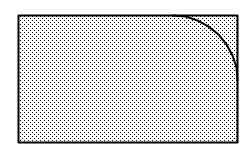

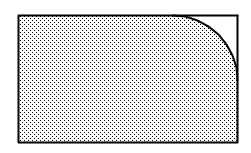

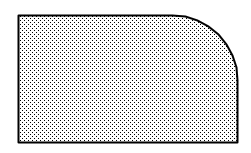

Placing a fillet by marquee selection
|
Mode |
Tool |
Tool set |
Shortcut |
|
Rectangular Marquee
Lasso Marquee
Polygonal Marquee
|
Fillet
|
Basic |
7 |
To place a fillet by marquee selection:
Click the tool, and then click a selection mode, a tangent mode, and a creation mode.
You can only use the marquee selection modes with Tangent-Radius mode.
Depending on the marquee mode, do one of the following to select the vertices between which to create fillets:
If Rectangular Marquee mode is selected, draw a marquee box around the vertices.
If Lasso Marquee mode is selected, draw a free-form marquee around the vertices.
If Polygonal Marquee mode is selected, draw an irregular polygonal marquee around the vertices.
For more details on using the marquee modes, see The Selection tool.
A preview of possible tangent fillets displays where the cursor is currently located. The fillet's size is controlled by the radius. Move the cursor, and then click to set the radius (or enter the radius in the floating data bar) and create the fillet.
Placing a fillet by radius
|
Mode |
Tool |
Tool set |
Shortcut |
|
Tangent-Radius
|
Fillet
|
Basic |
7 |
To place a fillet by radius:
Click the tool, and then click a selection mode, a tangent mode, and a creation mode.
To lock the fillet radius at a set value, click Defined Fillet Radius mode, and enter the radius to use in the Tool bar; after setting this value, the radius cannot be entered in the floating data bar.
Depending on whether the radius was set in Defined Fillet Radius, do one of the following:
If the radius was set in Defined Fillet Radius, select the segments or vertices between which the fillet will be created. When the segments/vertices are selected, a fillet is created based on the set radius size.
If the radius was not set in Defined Fillet Radius, select the segments or vertices between which the fillet will be created. When the segments/vertices are selected, a preview of possible tangent fillets displays where the cursor is currently located. The fillet's size is controlled by the radius. Move the cursor, and then click to set the radius (or enter the radius in the floating data bar) and create the fillet.
To apply the fillet to all adjacent sides of an object, double-click.
If needed, the segments are extended or reduced to allow for the fillet.
In this example, the Rectangular Marquee and Split modes are also enabled
Placing a fillet by locked intersection point
|
Mode |
Tool |
Tool set |
Shortcut |
|
Tangent-Locked
|
Fillet
|
Basic |
7 |
To place a fillet by locked intersection point:
Click the tool, and then click Select Segments mode, a tangent mode, and a creation mode.
You can use only Select Segments mode for selection with Tangent-Locked.
Click an exact point on the first segment to lock the intersection point.
Select the the second segment to which the new fillet will be tangent. When this segment is selected, the fillet is created. The second intersection point is determined by the radius.
In this example, the Select Segments and Trim modes are also enabled
