Creating circles
The Circle tool has nine modes and the Push/Pull mode.
|
Mode |
Description |
|
Radius
|
Defines the circle by its radius |
|
Diameter
|
Defines the circle by its diameter |
|
Circle by Three Points
|
Defines the circle by its circumference |
|
Circle from Three Lines
|
Defines the circle by making it tangent to two or three selected lines |
|
Point and Center
|
Defines the circle by a point on its circumference and then its center |
|
Tangent and Center
|
Defines the circle by defining a tangent to the circle and then its center |
|
Tangent Radius
|
Defines the circle by making it tangent to two selected circles or lines based on a defined radius |
|
Tangent Locked
|
Defines the circle by making it tangent to two selected circles or lines based on a locked intersection point |
|
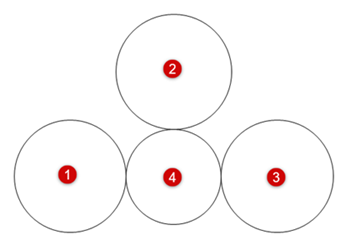
Fourth Circle
|
Defines the circle by making it tangent to three selected circles |
|
Push/Pull (3D views only)
|
Instantly extrudes the circle after creation; see Push/Pull mode of planar tools |
|
Push/Pull Combine (available with Push/Pull mode)
|
When the shape to be extruded is drawn on the face of a solid object, combines the two objects into a single solid addition or solid subtraction; when this submode is disabled, the new extrude remains a separate object, and the existing solid object remains unchanged |


To create a NURBS curve, draw a circle and then select Modify > Convert > Convert to NURBS.
Circle by radius
|
Mode |
Tool |
Tool set |
Shortcut |
|
Radius
|
Circle
|
Basic |
6 |

To create a circle by radius:
Click the tool and mode.
Click to set the center of the circle.
Move the cursor to the desired radius and click to set the radius of the circle.

Circle by diameter
|
Mode |
Tool |
Tool set |
Shortcut |
|
Diameter
|
Circle
|
Basic |
6 |
To create a circle by diameter:
Click the tool and mode.
Click to set the first point on the circle diameter.
Move the cursor to the desired diameter and click to set the diameter of the circle.

Circle by three points
|
Mode |
Tool |
Tool set |
Shortcut |
|
Circle by Three Points
|
Circle
|
Basic |
6 |
To create a circle by three points:
Click the tool and mode.
Click to set the first point on the circle diameter.
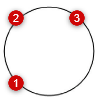
Move the cursor and click to set the second point on the circle and click again to set the third point on the circle.
Circle from three lines
|
Mode |
Tool |
Tool set |
Shortcut |
|
Circle from Three Lines
|
Circle
|
Basic |
6 |
To create a circle tangent from three lines:
Click the tool and mode.
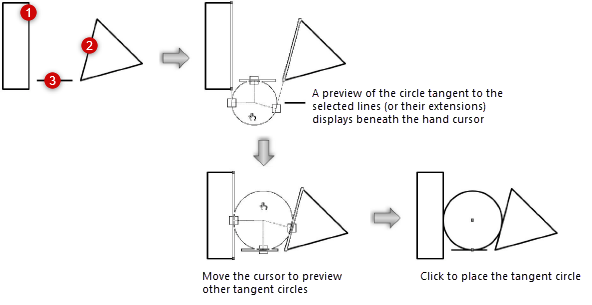
Click to select the three lines or linear segments to which the circle will be tangent. Each line is highlighted as it is selected. The lines (or their extensions) must intersect in at least two places.
When the third line is selected, a preview of a tangent circle displays where the cursor is currently located. You can create circles tangent to two or three lines. In places where only two lines intersect, the size of the circle is controlled by the cursor location. Move the cursor until the desired tangent circle displays, and then click the preview to set the circle.
Circle by point and center
|
Mode |
Tool |
Tool set |
Shortcut |
|
Point and Center
|
Circle
|
Basic |
6 |
To create a circle by point and center:
Click the tool and mode.
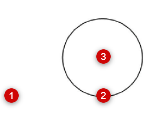
Click to set the first point on the circumference of the circle.
Move the cursor to the center of the circle and click to set the radius of the circle.

Circle by tangent and center
|
Mode |
Tool |
Tool set |
Shortcut |
|
Tangent and Center
|
Circle
|
Basic |
6 |
To create a circle by tangent and center:
Click the tool and mode.
Click to set the first point on the line tangent to the circle.
Click to set the second point on the line tangent to the circle, defining the tangent line.
Move the cursor to define the radius perpendicular to the tangent. Click to set the radius of the circle. It is not necessary to click the center point; click anywhere along an axis parallel to the tangent. This allows you to set the radius based on other geometry, if desired.
Circle tangent by radius
|
Mode |
Tool |
Tool set |
Shortcut |
|
Tangent Radius
|
Circle
|
Basic |
6 |
To create a circle tangent by radius:
Click the tool and mode.
Select the two circles/lines to which the new circle will be tangent.
When the second object is selected, a preview of possible tangent circles displays where the cursor is currently located. The circle's size is controlled by the radius. Move the cursor, and then click to set the radius (or enter the radius in the floating data bar).
Move the cursor until the desired tangent circle displays, and then click the preview to set the circle.
Circle tangent by locked intersection point
|
Mode |
Tool |
Tool set |
Shortcut |
|
Tangent Locked
|
Circle
|
Basic |
6 |
To create a circle tangent by locked intersection point:
Click the tool and mode.
Click an exact point on the first circle/line to lock the intersection point.
Select the circle/line to which the new circle will be tangent. When the second circle/line is selected, a preview of possible tangent circles displays where the cursor is currently located. The second intersection point is determined by the radius. Move the cursor until the desired tangent circle displays, and then click the preview to set the circle.
Circle tangent to three circles
|
Mode |
Tool |
Tool set |
Shortcut |
|
Fourth Circle
|
Circle
|
Basic |
6 |
To create a circle tangent to three circles:
Click the tool and mode.
Select the three circles to which the new circle will be tangent; the circles must not be intersecting or collinear.
When the third circle is selected, a preview of possible tangent circles displays where the cursor is currently located. Move the cursor until the desired tangent circle displays, and then click the preview to set the circle.