Dynamic objects
Some objects, such as Revit families and family instances and DXF/DWG dynamic blocks, can be imported as Vectorworks dynamic objects. These are styled parametric objects that are grouped into types by their geometry. For example, if importing a Revit family or DXF/DWG dynamic block with tables of several different sizes and shapes (Revit family types or DXF/DWG block presentations), they all share the Style Table, and each unique size/shape has a Type within the style. Each table's type can be changed from the Object Info palette, if needed, as can its scale factor so the import fits into the active file. In addition, wall-hosted objects are imported as Dynamic Object in Wall. Windows and doors in walls create a wall opening; other objects in a wall, such as cabinets, are embedded in the wall without creating a wall opening.
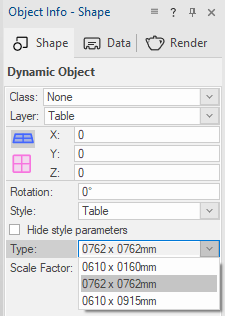
A record format is attached to the dynamic object for each type imported. The record format can be edited or renamed without affecting the object's core functionality.
Some plug-in object (style) options, such as the class, cut plane, and wall insertion options, apply to dynamic objects.
Editing dynamic object geometry
If a dynamic object style and type is imported with only 2D or 3D geometry, as when importing a DXF/DWG dynamic block, you can add the other geometry component and create hybrid objects that contain both 2D and 3D geometry. You can edit the geometry of a dynamic object style, which will change all objects in the file that use that style and type, or of an individual unstyled dynamic object instance.
To edit the geometry of a dynamic object style:
Do one of the following:
Right-click on the object in the drawing area and select Edit Plug-in Style from the context menu.
Right-click on the object style in the Resource Manager and select Edit from the context menu.
The Edit Dynamic Object Style dialog box opens.
Select whether to edit the 2D geometry or 3D geometry, and select the object type to edit. Optionally, edit the style name.
The selected geometry opens in object editing mode.
Edit the object geometry as needed. Every dynamic object instance in the file that uses that style and type changes.
To edit the geometry of a dynamic object instance:
Right-click on an unstyled object and select Edit from the context menu.
The Edit Dynamic Object dialog box opens. Select whether to edit the 2D geometry or 3D geometry.
The selected geometry opens in object editing mode.
Edit the object geometry as needed. Only the selected object instance changes.
Optionally, you can create a new style from an unstyled dynamic object. Right-click on an unstyled dynamic object and select New Plug-in Style from Unstyled Plug-in from the context menu. Select where to save the style, and then name the dynamic object style.
