Changing viewport visibility
|
Command |
Path |
|
Edit Viewport |
Modify Context menu |
When editing a viewport's design layer, you can apply object, class, and layer visibilities changes to the viewport; see Editing a design layer displayed in a viewport. These changes can also be applied when editing a linked camera on a sheet layer in object editing mode; see Editing a linked Renderworks camera or video camera.

To apply object, class, or layer visibilities changes from a design layer or a linked camera on a sheet layer to a viewport:
Select the viewport.
Select the command. The Edit Viewport dialog box opens (see The Edit Viewport dialog box for a description of the dialog box parameters).
Do one of the following:
Click Design Layer, and select the design layer to edit from the list. The viewport opens in object editing mode.
Alternatively, right-click on a viewport and select Edit Design Layer from the context menu.
Click Camera to enter object editing mode.
Alternatively, right-click on a viewport and select Edit Camera from the context menu.
Edit the design layer visibilities as needed; see Layer or class visibility changes using the Visibility tool and Layer or class visibility for viewports and saved views.
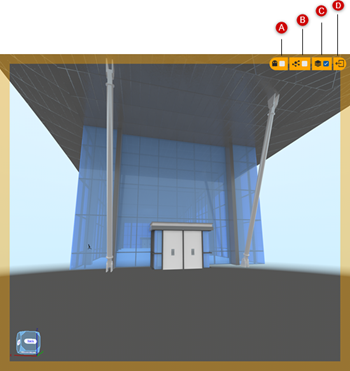
Click to place a check mark beside the visibility icons located in the upper right corner of the border to apply the visibility changes to the viewport.
Exit object editing mode to return to the viewport.
|
A: Select to apply object visibility changes to the viewport |
|
B: Select to apply class visibility changes to the viewport |
|
C: Select to apply layer visibility changes to the viewport |
|
D: Return to the viewport |
An arrow beside the class and/or layer icon indicates the visibilities are set by style and can only be edited from the Edit Viewport Style dialog box; see Creating and editing viewport styles.