Command |
Path |
Shortcut |
Properties |
Window |
● Ctrl+Shift+Y (Windows) ● Cmd+Shift+Y (Mac) |
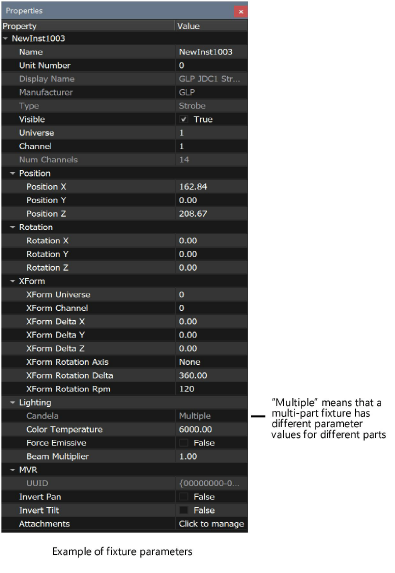
You can view and edit the parameters of selected fixtures and objects in the Properties palette. When multiple items are selected, the display of parameters depends on the first selected item; only that type of item displays parameters.
To open the Properties palette:
Select the command.
Individual parameters are grouped by function. Click successive disclosure arrows to expand the list hierarchy. Use the scroll bar on the Properties palette to navigate the list, or scroll with the Page Up/Page Down and arrow keys. The available parameters depend on the items selected. Depending on the parameter, a field may be edited, a value toggled, or a dialog box opened.
When no scene items are currently selected, the global scene parameters display in the Properties palette. To edit these parameters, select ROOT from the Scene Graph palette.
Most, but not all, of the global scene parameters can also be edited from the Document Preferences dialog box. For ease of access, frequently used parameters display at the top of the Globals list in the Properties palette. The remaining global parameters are grouped like the tabs on the Document Preferences dialog box.
 Click
to show/hide the parameters.
Click
to show/hide the parameters.
When scene items are selected, the parameters that display on the Properties palette depend on the item type. Some parameters are available for both fixtures and objects, while other parameters are available only for fixtures or objects.
Click
to show/hide the parameters.
~~~~~~~~~~~~~~~~~~~~~~~~~
