Access resources
Vectorworks gives you several ways to quickly access the resources you need while you work. You can take advantage of easy access to files, sample files, learning courses and videos, and other resources on the Home screen. Stay current by checking for software updates directly from the application, ensuring you always have the latest fixes and features. When you need more detailed information, context-sensitive help and the What’s This? command takes you instantly to online help system for guidance. Get quick answers and personalized support by engaging with the Vectorworks AI Assistant. Combined with customizable keyboard shortcuts, these options help you navigate Vectorworks efficiently and get to the right resources with minimal interruption to your workflow. Explore even more resources through the Vectorworks Customer Portal, Knowledgebase, and Vectorworks University.
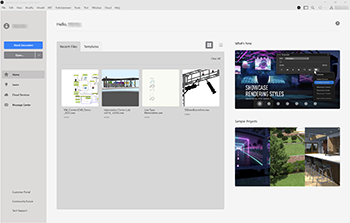
Use the Home Screen
The Home screen gives you quick access to files, videos, and other resources to help you learn and work with Vectorworks. You can decide whether you want the Home screen to open automatically in the Vectorworks preferences Session pane. You can also toggle between the Home screen and the drawing area at any time by selecting the command or clicking the icon 
 in the top right of the Title bar (Mac) or Menu bar (Windows).

Check for updates
In addition to annual major releases, Vectorworks regularly publishes updates that include new features, maintenance fixes, and enhancements for third-party products. Updates can be checked for by selecting Check for updates in the Vectorworks preferences Session pane. We strongly recommend you automatically check for updates weekly to get any critical security fixes and other important features without delay. An alert dialog box displays when an update is available.
Access context-sensitive help
You can open the Vectorworks help system directly to the page that tells you about the tool, command, dialog box, or palette you're using. To get more details about a palette or dialog box, click the ? icon on the Title bar or press F1. For information on a selected tool, press F1 (press Fn+F1 on an aluminum keyboard Mac). You can also learn about any menu command, context menu command, tool, or palette by choosing Help > What’s This?. When the question-mark cursor appears, click the feature you want to know more about. To deactivate the “What’s This?” cursor, simply select Help > What’s This? again.
Engage with the AI Assistant
With a Vectorworks subscription (or as a benefit of Vectorworks Service Select), use our AI Assistant as a real-time support for quick answers to your Vectorworks questions. Open the AI Assistant by selecting Help > AI Assistant (Preview). Once the AI Assistant opens in your default browser, sign in and select the distributor type and the Vectorworks version. Then ask your questions and the AI Assistant will provide the answers, with links to the online help system or other resources should you need additional details.
Explore more resources
Customer Portal
The Vectorworks Customer Portal is a central location for accessing Vectorworks services, content, and account information. To sign in, open Vectorworks and choose Help > Customer Portal.
Vectorworks University
Vectorworks provides a range of training options for all skill levels through the Vectorworks University. The platform offers on-demand learning resources, including product and goal-based courses with progress tracking, webinars, getting started guides, task workflows, tool overviews, helpful tips, and information about new product features. To access the university, select Help > Vectorworks University.
Knowledgebase
Our Knowledgebase is a great resource for finding answers to common technical questions, video tutorials, and helpful tech tips in one convenient place. To open the Knowledgebase, select Help > Search Knowledgebase in Vectorworks.