Organize your workflow
Organizing your workflow in Vectorworks starts with tailoring the environment to match how you like to work. You can customize or create workspaces so your favorite commands, tools, keyboard shortcuts, and palette layouts are always at hand, and then save those setups to your user or workgroup folders to keep them consistent across sessions or team members. Class hierarchies let you structure complex projects into clear, expandable groups, making navigation and visibility control much easier. Behind the scenes, user and workgroup folders store your preferences, standards, and libraries so your custom environment is both portable and protected during updates. Features like autosave and saved views further support an efficient workflow by automatically preserving your work and letting you quickly return to specific view and visibility configurations, or even use them to create animations.
Customize a workspace
Vectorworks lets you edit a current workspace, edit a copy of a current workspace, or create a new workspace to create your own custom workspace or multiple workspaces for your needs and preferences. You can then save them to your user folder, workgroup folder, or both. Menus, context menus, tools, keyboard shortcuts, and palette positions and settings can also be modified.
Select Tools > Workspaces and then select either Workspaces or Edit Current Workspaces. In the Workspaces dialog box, select the workspace you want to manage, and choose your options in the workspace list.

Create new classes and layers
Certain settings help you fine-tune a new class or layer's settings at creation or immediately after creation instead of using the default settings and altering them later.
When creating a new design layer or class from the Organization palette, select Edit properties after creation to take you right to the Edit Design Layers dialog box or Edit Class(es) dialog box. With this option enabled, the class or layer settings open as soon as a class or layer is created so you can review and adjust attributes right away.
When creating a new class from the Edit Class(es) dialog box, select Use at Creation if you want to apply the attributes immediately when adding an object in that class to the drawing.
Display classes in hierarchical order
You can give classes multi-part names (up to four parts) separated by dashes to build a hierarchy. You can choose to show your classes with or without this hierarchy, and when the hierarchical view is on, you can expand or collapse each level as you need. Depending on where the class list is, the hierarchical display is enabled and expands/collapses in different ways. To enable hierarchical displays, do one of the following:
Organization dialog box: Click the toggle button in the lower right corner, or select Hierarchical Display from the context menu.
Navigation palette (Vectorworks Design Suite product required): Select Hierarchical Display from the main menu or context menu.
Popups: select Display classes in pop-up menus hierarchically from the Vectorworks preferences Session pane. This setting controls class pop-up menus throughout the software—for example, in the View bar and Object Info palette.
Saved views
Saved views store how your drawing looks, capturing details such as the orientation, viewing parameters, visibilities, and so on. It's an easy way to restore an entire collection of view settings at once. You can also use saved views to create animations with smooth transition between saved views. Easily create or navigate to a saved view by selecting Saved Views on the View bar.
Autosave settings
The autosave feature automatically saves your file for you, either every set number of minutes or after a certain number of actions. Options for autosave are located in the Vectorworks preferences Autosave pane. Toggle Autosave on/off in quick preferences.
We recommend you create a backup folder on your desktop or in your preferred cloud storage and point autosave there so you're covered if your computer unexpectedly shuts down. Having a single backup location makes it easier to find your recent files, move them where they belong, or clear out old backups when you no longer need them.
User and workgroup folder locations
Vectorworks automatically stores your customized settings, personal resources, and other files in a User folder saved on your hard drive; see the Vectorworks preferences User Folders pane for the User folder's default path. This location means that updates or reinstallations won't erase important information and settings. You can also point to a different user folder, if you prefer.
With Vectorworks Design Suite products, you can create one or more workgroup folders with a parallel structure in a shared folder that others on your team can use. Workgroup folders are an easy way to consistently use a company's standard templates, title block borders, and other resources, such as custom resources needed for a specific project.
Save and share files in Vectorworks Cloud Services
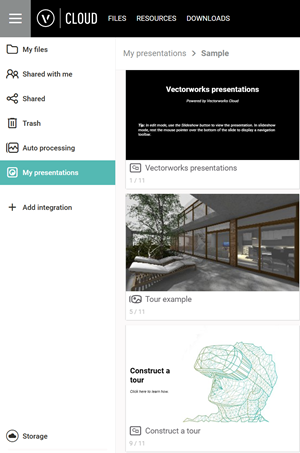
Vectorworks Cloud Services allow you to process, manage, and share files, virtual walkthroughs, and presentations from any location. Download and install the Vectorworks Cloud Services app to create a local folder. Add files to your cloud storage account to view and share from any browser, as well as the Vectorworks Nomad mobile app. You can also access the Vectorworks Cloud Services website in the Cloud menu to create and maintain your account. For additional information, go to https://cloud.vectorworks.net/portal/help/.