Streamline drawing interactions
Vectorworks gives you many options and tools to control how you interact with a drawing so your workflow is efficient and precise. You can fine-tune snapping and SmartCursor cues, zoom in on tricky snap points with the snap loupe, and reframe your view by fitting it to objects or the page area. Mouse and keyboard controls, like pan and zoom or using the arrow keys, help you navigate without breaking your workflow. You can manage what you see with visibility tools and preferences, control the number of undos, choose whether duplicates are offset, select similar objects, and use Smart Options Display to bring the tools and options you use the most right to your cursor. Quick Search lets you find commands, tools, preferences, and even related online help, training, and videos without leaving the drawing area.
Set snapping and SmartCursor cues
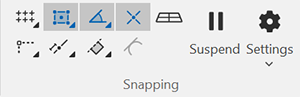
Snapping settings control how the SmartCursor snaps onto key points so you can draw and edit with precision in Top/Plan and 3D views. When used with drawing tools, the SmartCursor provides visual cues like snap indicators, hints, extension lines, and text, and then snaps the cursor exactly where it needs to go. You can turn the SmartCursor on and off with the Y key, or by clicking each button or Suspend Snapping in the Snapping set, which is pinned to the View bar by default.
Snapping types can be used individually, combined, or in conjunction with the Data bar input. For most drawing, we recommend turning on Snap to Object, Snap to Angle, and Snap to Intersection in the Snapping set, and Show SmartCursor cues in the General Snapping Settings popover.

Zoom with the snap loupe
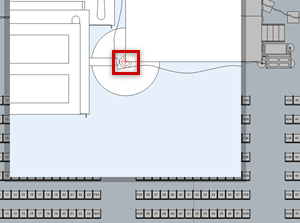
When it is difficult to find the desired snap point, you can use the snap loupe, which temporarily zooms in on the drawing to obtain the snap. To use the snap loupe, move the cursor to the area where you want the snap to display and press the Z key. If the snap loupe isn’t zoomed in enough to find a snap, press Z again. The snap loupe window closes automatically after the desired operation is performed. Alternatively, press the Esc key to exit the snap loupe without clicking, or click outside of the loupe to close it.
Fit to object or fit to page area
The Fit to Objects command makes it easy to zoom your drawing in or out. You can either fit the view to show all objects in the drawing, or just fit it around a selected object or group of objects.
The Fit to Page Area command adjusts the view to match the printable page. For a single-page drawing, it shows the entire page; for multi-page drawings, it shows all pages at once.
For convenience, you can find the Fit to Objects  and Fit to Page Area
  commands in the Zoom group of the View bar.
Use the mouse to pan and zoom
On a wheel mouse, you can click and hold the wheel to pan at any time, no matter which tool is active. This won’t work correctly if the wheel button has been given a custom function in your mouse settings.
You can also use the mouse wheel for zooming. Roll the mouse wheel forward to zoom in on the drawing (you don’t need to have the Zoom tool selected). Roll the wheel backward to zoom out. When you zoom with the mouse wheel while the cursor is over the Onscreen View Control cube, the view zooms around the drawing area instead of the cursor. How the mouse wheel behaves is controlled by the Mouse wheel zooms setting in the Vectorworks preferences Edit pane.
Use the arrow keys
Arrow keys can be used for panning the view, nudging objects, switching the active layer or class, changing saved views, and moving around worksheets. Check the default arrow key actions in the Vectorworks preferences Edit pane, and adjust these keys to your workflow; we find that people often want to change the key for panning the drawing.
Use keyboard shortcuts
Vectorworks has a variety of default keyboard and mouse shortcuts to activate specific tools and commands, move between standard views, and activate mode groups on the Tool bar. Many shortcuts can be customized when you edit a workspace. Vectorworks also remembers whether you use the number pad or the number row above the letters for a numerical shortcut. A list of keyboard shortcuts can be found in the Vectorworks online help system located at the end of the table of contents. While you can edit your keyboard shortcuts at any time, we recommend keeping them at their defaults until you are comfortable with Vectorworks.
Set the number of undos
One or more of your most recent actions can be undone with the Undo command. You can control the command with the Maximum Number of Undo parameter in the Vectorworks preferences Session pane. Although this can be set as high as 100, we recommend setting the maximum number as low as you can to save memory usage. You can adjust warnings for actions that cannot be undone and specify whether or not to undo view changes. You can also adjust how to handle view changes when undoing; grouping view changes as a single undo operation can make using a lower number more practical.
Offset duplications
It can be easy to lose track of duplicate objects when they're stacked directly on the original, let alone to select them; we recommend you offset duplicates, at least when you're first learning Vectorworks. With Offset duplications selected in the Vectorworks preferences Edit pane, using the Duplicate command places the duplicate object so that it is offset from the original object. Deselect the option to place duplicates directly over the original. To make duplications quickly, press the Ctrl key (Windows) or Options key (Mac) so that the "+" appears next to the cursor, then click and drag the object.
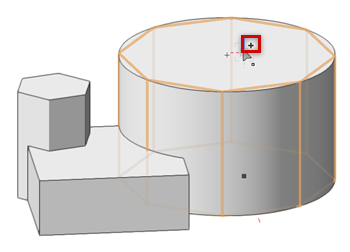
Object ready to click and drag for duplication with the "+" showing
Choose a render mode
Render modes let you view your drawing in different ways so you can see it with more realistic details and visual effects. We recommend you set the render mode to Shaded for a fast, detailed, good-quality rendering with colors, shading, and textures. You can easily change render modes on the Current Render Mode menu on the View bar. The preset render styles are another way to quickly view different rendered views of your design without making any settings.
Select similar objects
The Select Similar tool  lets you select objects that are similar to a selected object, for example when you need to move or modify a large number of windows. You can adjust preferences easily from the Tool bar to specify which similar attributes to select. You can save and reuse sets of regularly used attributes.
Smart Options Display
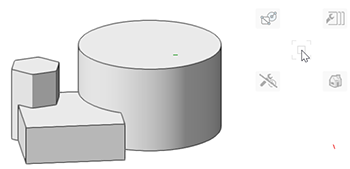
When enabled in quick preferences, Smart Options Display improves focus and efficiency by giving you quick, context-sensitive access to your favorite tools, tool sets, tool modes, standard views, and snapping options, right next to your cursor in the drawing area. You can customize both the display settings and how to trigger Smart Options Display to appear in the Smart Options Display pane in Vectorworks preferences. After triggering the Smart Options Display, simply move the cursor to the contextual hint for the option needed, and click the item to select it.
Quick search
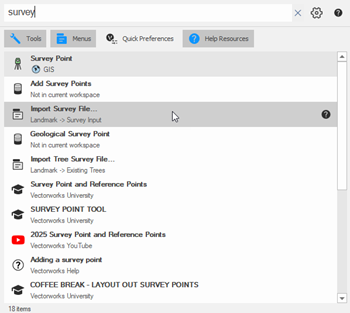
With Quick Search, you can find commands, tools, and quick preferences right from the drawing area. You can also connect to related online resources, like help topics, Vectorworks University lessons, and YouTube videos. Use Quick Search by selecting the command in the Tools menu, using the F keyboard shortcut, or by clicking the Quick Search icon  on the Title bar (Mac) or Menu bar (Windows), and then entering text into the search bar. The Quick Search window opens, where you can enter text into the search box, access Vectorworks preferences to customize your search, access help resources, and so on.