The Home screen
|
Command |
Path |
Title/Menu bar |
|
Home Screen |
Window |
|

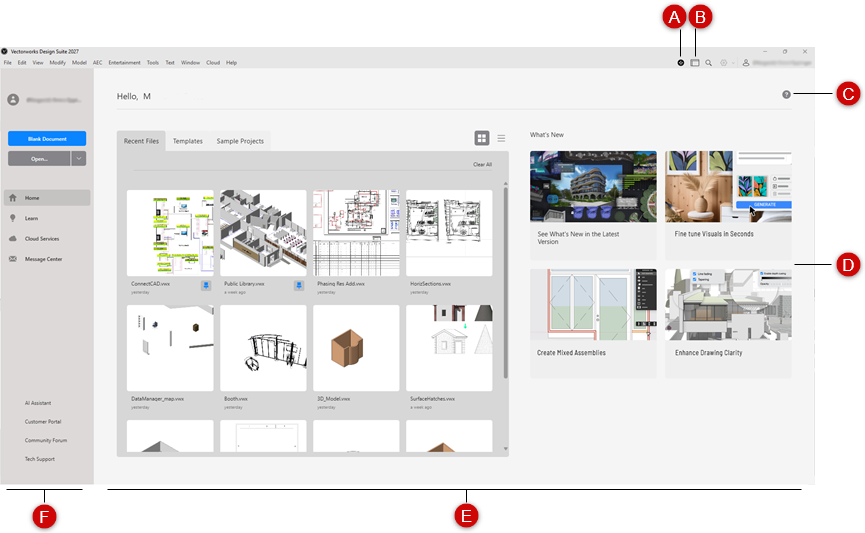
The Home screen provides a single point of access to a variety of files, videos, and other resources for learning and using Vectorworks. You can use the Home screen to create and open files, and when the Home screen is active, the Vectorworks menus are accessible and behave as they do when there is no open file. Depending on your Vectorworks preferences and how you launch the program, the Home screen may open automatically on startup; see Vectorworks preferences: Session pane.
To toggle between the Home screen and the work area at any time, select the command or click the icon on the top right of the Title bar (Mac) or Menu bar (Windows).
The work area automatically displays when you open a file from the Home screen, or when you drag and drop a file onto any part of the Home screen or onto the Vectorworks icon on the dock (Mac).
The Home screen automatically opens to the Home pane.
|
A: Opens AI Assistant B: Toggles between the Home screen and work area (main application) C: Opens the online help system D: Links to information and videos about new features E: Content panel F: Side bar |
The side bar lets you open Vectorworks files, select what kind of content to display in the Home screen's content panel, and link to external resources.
Click to show/hide the options.Click to show/hide the options.
|
Option |
Description |
|
Login name |
Displays the login name; access the account settings from the Vectorworks Menu/Title bar |
|
Blank Document |
Open a new blank document |
|
Open |
Open a Vectorworks file; click the down arrow on the right to open a project file on the Project Sharing Server (see Creating and editing a working file) |
|
Home screen panes |
The Home screen automatically opens to the Home pane, but other content can be displayed in the Content panel. Some panes, information, and links are unavailable if you are not signed in or not connected to the internet. The Home screen needs to connect to the internet at least once to display the contents. |
|
Home |
Open new or existing files, including recent files, templates, and sample projects Access information and videos about new features |
|
Learn |
Access Vectorworks University for online training, new features videos, and certification courses View the upcoming events calendar and register to attend webinars and other events Open the Vectorworks online help system |
|
Cloud Services |
Access your files on Vectorworks Cloud Services Learn how Cloud Services can help with collaboration, processing and storing large files, sharing presentations and virtual walkthroughs with clients, and more |
|
Message Center |
Retrieve new messages and set preferences |
|
Additional resources |
Link to the Vectorworks AI Assistant, Customer Portal, Community Forum, and Technical Support website (internet access required). Some sites are unavailable if you are not signed in. |
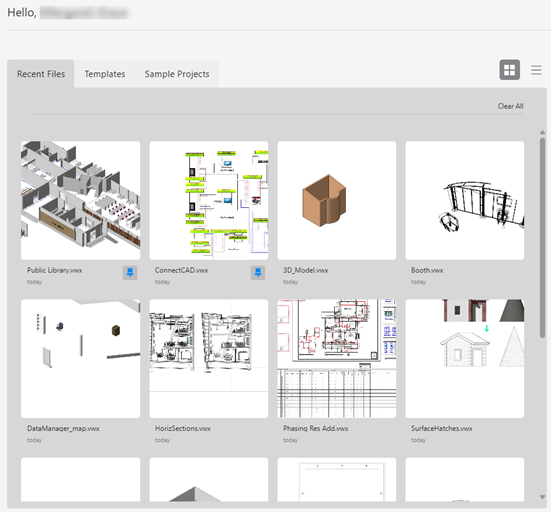
When the Content panel is set to the Home pane, you can view, open, and manage recent files, templates, and sample projects. Each tab displays the file name, a thumbnail view, and the date the file was last opened. By default, the files display in the order they were last opened (most recent first), but you can pin files to display first in the tab; pinned files display a highlighted pin. When there are multiple pinned files, they display in the order they were last used.
Hold the cursor over a file to display the file path. In grid views, holding the cursor over the file also displays the file menu in the upper right corner of the file, and for unpinned files, a black pin; click it to pin the file and move it earlier in the list. The menu and pin are always visible in list view. In list view, the file size also displays. Access the following commands from the file menu:
Pin/Unpin File changes the pinned status of the file; alternatively, click the pin icon to change the status.
Clear Recent File (Recent Files only) removes the selected file from the Recent Files list here and under the Open Recent command in the File menu.
Show in Explorer (Windows)/Reveal in Finder (Mac) opens the folder containing the selected file.
Click a file to open it, or to create a new .vwx file that uses the selected template.
Click to show/hide the options.Click to show/hide the options.
|
Option |
Description |
|
Recent Files |
Displays the files most recently opened in Vectorworks; click to open the file. Click Clear All to remove everything from your list of recently opened files, here and under the Open Recent command in the File menu. |
|
Templates tab |
Use templates to set up new files quickly and consistently; see Concept: Templates. Each file also displays an icon that shows where it is saved:
Use Filter by Type to select which templates to list based on where the files are saved. Click a file to create a new .vwx file that uses the selected template. |
|
Sample Projects |
Use sample projects to get started quickly with Vectorworks; click a file to open a new .vwx file that uses the selected sample project. Alternatively, click View All to access additional samples on Vectorworks University. |
 Vectorworks default folder
 User folder
 Workgroup/project folder