 Setting the active phase in a design layer
Because object changes are automatically assigned to the active phase, it's essential to ensure you're working in the proper phase as you add, remove, and relocate objects in a drawing. Phase assignments for selected objects can be changed later on the Object Info palette.
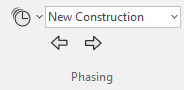
To select the active phase:
Do one of the following:
On the View bar, click Active Phase, and select the desired phase from the list.
On the View bar, click the Activate Previous Phase/Activate Next Phase arrows to switch to the phase before or after the active phase.
Select View > Phasing > Next Phase or View > Phasing > Previous Phase to move forward or back in the timeline.
To activate the phase in which a selected object instance was created, removed, or relocated:
Right-click on the object, and select the appropriate command from the context menu.
Object Phasing > Activate Phase Created
Object Phasing > Activate Phase Removed
Object Phasing > Activate Phase Relocated
