 Concept: Phasing
Difficulty level: Intermediate
The Vectorworks phasing feature offers a dedicated workflow for renovations and other phased projects, allowing you to specify the phases in which objects are created, removed, relocated, stored, and so on throughout a project. In short, phasing isn't about what is created, but when it is created. Each phase represents a block of time, and each object in a drawing exists in relation to each phase. A file must always have an active phase. The phase when an object is created, when it is removed and/or relocated, and its status in the active phase are key to managing a project.
While phasing is currently available with any Design Suite product, it is optimized for use in architectural and interiors projects. The phasing tools and commands must be added to the Landmark and Spotlight workspaces using the Workspace Editor.
Managing phases
At a minimum, most basic renovation projects will have two phases: one to document the existing (as built) conditions before the renovation, and the other to document the demolition and new construction completed during the renovation. More complex projects may have several phases. You can add phases, merge one existing phase into an adjacent phase, and edit the name and other details about a phase, so the phase names, order, and structure are appropriate for each project. Once established and in use with objects added to the drawing, the order of phases can't be changed, and a phase can only be merged into another but not deleted, as these changes could create an impossible order of operations for objects within a phase.
Each change to an object is automatically assigned to the active phase. As you work in a file, it's essential that you have the proper phase active as you add, remove, and relocate objects. The phases are managed and the active phase is selected and displayed on the View bar (when the Phasing group is pinned to the View bar), so it is visible at all times.
Every Vectorworks file must have at least one phase, even if the project being documented doesn't use phasing, making everything essentially new construction. For unphased projects, you can unpin the Phasing group from the View bar and proceed as though it doesn't exist.
Managing objects with phasing
It is essential that each object has the proper phasing data. Objects in a file are automatically assigned to the active phase when they're created, demolished, removed, or relocated, but phasing data for a selected object instance can be changed in the Object Info palette. The Object Info palette is the central hub for managing phasing data for an object/instance, but there are other tools, commands, and palettes that help track and manage object phasing, including the Phasing palette, the Demolition tool, and context menu commands to navigate to linked, phased instances of the same object.
Object phasing can be managed only on design layers; some objects, including some Landmark- and Spotlight-specific plug-in objects, objects such as the heliodon, and some annotations, can't be phased.
A single object may end up occupying multiple locations in different phases, such as a window that's removed and stored when one wall is demolished and then relocated into a new wall. To distinguish among these different uses/locations of the same real-world object, they are referred to as instances; a single object can have several instances, each with its own phasing data.
An object instance has a Status in Active Phase display on the Object Info palette that reflects its status in relation to the current active phase. For example, a window that is added in Phase 1 has a status of New in Phase 1. In Phase 2, that object is no longer new, but has a status of Existing. If the object is removed in Phase 2, the status changes to Removed, and if it is relocated in the same phase, the status changes to Relocated, always indicating the final operation performed on that object in relation to the active phase. In Phase 3, the window that was relocated in Phase 2 has a status of Existing, because when Phase 3 begins, that window in that location already exists.
It's essential to track a single object across multiple instances, and to indicate the status of an instance in relation to each phase. The phasing feature allows you to track which objects are removed from their initial location, potentially stored for a time, and placed in a different location within the project. You can navigate from one instance of an object to the previous or next instance of the same object, to see the object's various locations in the drawing, and the order in which they are used. Each instance can be selected individually, and its phasing data reviewed or changed in the Object Info palette.
Although you can edit the phasing data for each instance separately, you must be cautious when editing individual object instances. For example, you can change a window's trim or sill between instances, but shouldn't make changes that affect the window unit itself, such as its size or geometry. Each of the instances is essentially the same object.
Component-based objects (such as walls, slabs, roofs, and hardscapes) are treated as a single object for phasing purposes; individual components can't have a different phase status from the parent object. If you need to demolish only some components of an object, such as to convert an exterior wall to an interior wall during an addition, you need to create additional object styles with only some of the components, and manage the change using those objects.
The phasing feature maintains a logical order of operations (one that can be completed with physical objects during construction), and alerts you if you attempt to change an instance in a way that will invalidate the phasing data for another instance. For example, if you attempt to demolish, rather than remove, an earlier instance of an object that is reused in a later phase, an alert will present you with options to resolve the conflict. Likewise, hosted objects (such as windows and doors) can't be removed later than their hosting objects (such as walls).
You can also designate some objects, such as dumpsters or portable toilets, as temporary, indicating that while they are on site for one or more phases, they are not a permanent part of the project. Temporary status can also be used to set design layer annotations such as dimensions or interior elevation markers to be present only in specified phases. Objects can only be removed from the same phase in which they were created if they are first marked Temporary on the Object Info palette.
Visualizing phased projects
Use data visualizations to control which instances are visible and their appearance in the design layer or in a sheet layer viewport at any given time, based on their status in the active phase. Without data visualizations, all objects in a drawing appear the same, regardless of when they were created, removed, or relocated; data visualizations are necessary to display the time element of phasing in the drawing area.
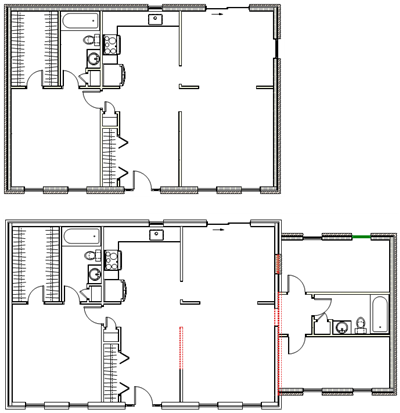
Data visualization displays the changes between the first phase and the second phase
In a design layer, use document preferences to set a low detail level for component-based objects and/or plug-in objects and symbols based on their status in the active phase. You can also set phasing-related low detail level preferences for objects on each sheet layer viewport or viewport style. These settings override the default document preference for detail levels on design layers, and the detail level setting for each sheet layer viewport.
Reporting and documenting phased projects
Criteria and functions available on the Criteria dialog box, Select Function dialog box, worksheet functions, and more allow you to use object phasing data with many common reporting, visualization, and annotation tools, including worksheets, data visualizations, viewports, data tags, graphic legends, saved views, and so on.
When exporting a Vectorworks file to another format, in most cases, the file exports in a "what you see is what you get" state. That is, if objects are exported from a design layer, they export in the state they are in during the active phase when exported. Likewise, if a sheet layer is exported, objects export in the phase status shown in the viewports. However, exporting to DXF/DWG and IFC formats is more complex; see DXF/DWG and DWF export options and Exporting IFC projects.
When importing referenced design layers and IFC projects, you can map their phases into the Vectorworks file to ensure the right changes happen in the right sequence. See Adding and editing reference files and Importing IFC files.
