 Data legend settings
These settings are available in the following locations:
Data Legend Preferences dialog box (creating an object)
Object Info palette (editing an object)
Data Legend Style dialog box (creating or editing a style)
If a legend style is selected, only parameters set by instance can be edited (see Concept: Plug-in object styles). Options available only on the Object Info palette are listed at the bottom of the table.
Click to show/hide the parameters.Click to show/hide the parameters.
|
Parameter |
Description |
|
Use Style |
From the Resource Selector, double-click a resource to activate it, or click Unstyled. If a styled object is converted to unstyled, the current values are retained, but all parameters are set to By Instance to allow editing. |
|
By Style/Instance |
A graphic indicates whether each parameter is set to By Style and given a fixed value or set to By Instance and editable. An object style may have a combination of both settings, to balance the need for consistency and flexibility. By Style/Instance settings are established by the style and cannot be changed.
To edit the object style, see Editing plug-in object styles; editing the style modifies all plug-in objects in the file that use the style. |
|
Define Legend Source |
Opens a dialog box to specify the objects used to create the legend; see Defining the data legend source |
|
Hide empty cells |
Shows or hides cells created by objects that meet the source criteria, but have no text |
|
Legend Title |
Enter a title for the legend |
|
Display title |
Shows or hides the legend title |
|
Title Width |
Specify whether to show the title over the first cell, or over the entire legend |
|
Arrange Layout by |
Specify whether to arrange the legend cells by column or row |
|
Fixed cell width/height |
Select to make all cells in the legend the same width (when arranged by column), or the same height (when arranged by row) |
|
Edit Cell Layout |
Opens editing mode to edit the way data display in each cell and add optional static or dynamic text fields; see Data legend: Editing the cell layout. The preferences dialog box indicates whether this setting is by style or by instance, but it cannot be edited. |
|
Edit Title Layout |
Opens editing mode to edit the way the legend title displays; see Data legend: Editing the title layout. The preferences dialog box indicates whether this setting is by style or by instance, but it cannot be edited. |
|
Use world-based units |
Specify whether the data legends units are based on page dimensions or world dimensions; see Concept: Page-based and world-based units |
|
Scale Factor |
Scales all geometry in the legend by the specified factor |
|
Object Info palette only |
|
|
Style |
Replace, edit, or remove the current style, or (for unstyled objects only) create a new plug-in style (see Custom plug-in object styles without catalog options). Editing a style changes all instances in the file that use the style. |
|
Hide style parameters |
Hides the parameters that are set by style; these cannot be edited from the Object Info palette |
|
Recalculate |
Updates the legend with the latest data from the drawing; it's recommended to recalculate legends prior to exporting or printing |
|
Filter by Viewport |
Opens a dialog box to limit the legend contents to objects from specific viewports; see Data legend: Filtering by viewport |
|
Cell Visibility and Sorting |
Opens a dialog box to adjust the visibility and sorting of cells in the legend; see Data legend: Changing the cell visibility and sorting |
Defining the data legend source
The Define Data Legend Source dialog box specifies which drawing objects are used to create the legend. The legend can display styles or types of objects, or it can display a specific attribute applied to the object.
Click to show/hide the parameters.Click to show/hide the parameters.
|
Parameter |
Description |
|
Legend Source |
Select the type of object to use for the legend (for example, polygon or symbol) |
|
Define Custom Source |
Opens the Criteria dialog box to enter custom criteria for selecting the legend source (for example, to specify multiple object types, or to add conditions to refine the selection); see The Criteria dialog box |
|
Source Criteria |
Displays the legend formula specified in the Criteria dialog box |
|
Legend Type |
Select whether to display object styles/types or object attributes (for example, textures or pen attributes) in the legend |
|
Reporting |
Determines how to present the selected objects in the cells. For example, if you report door objects by Configuration, the legend has a cell for each unique door configuration in the drawing. You can select multiple items—for example, door Configuration, Style, and Width. The choices available depend on the Legend type selected. For an object-based legend, the setting is optional. Object-based: Select from the object parameters (for each object type), class name, design layer name, and style or symbol name Attribute-based: Select from the available attributes Click New to add a line to the list, and then select an item from the Report by column. To reorder the list, drag the number in the # column up or down. |
|
Sorting |
Determines how to sort the cells. The list functions the same way as the one for reporting, except that you can also select the cell sort order. To specify a custom sort order, select Custom order; then click Cell Visibility and Sorting from the Object Info palette. |
|
Filter by Viewport |
Opens a dialog box to limit the legend contents to objects from specific viewports; see Data legend: Filtering by viewport |
|
Number of cells |
Displays the number of cells in the legend, based on the current criteria |
Data legend: Filtering by viewport
The Filter by Viewport dialog box allows you to limit the legend contents to objects from specific viewports; if no viewports are selected, objects from all viewports are included. Click the Use column next to a viewport name to select it.
Alternatively, right-click the legend, select Add Filter Viewport, and then click on a viewport to use as a filter.
Data legend: Changing the cell visibility and sorting
The Cell Visibility and Sorting dialog box allows you to adjust the visibility and sorting of cells in the legend directly. When you click a row, the corresponding cell in the legend is highlighted in red.
Click to show/hide the parameters.Click to show/hide the parameters.
|
Parameter |
Description |
|
Sorting |
The settings from the sorting list in the Define Legend Source dialog box display, and can be edited here. Click New to add another item or Delete to remove a selected item from the list. To specify a custom sort order, select Custom order and use the Visibility and Custom Order list to arrange the cells as desired. |
|
Visibility and Custom Order |
|
|
Show |
Cells with a check mark in this column are included in the legend |
|
# |
Click and drag the number in this column to reorder the cells in the legend |
|
Report by Value |
Displays the primary Report by values for each cell in the legend, as set in the Define Legend Source dialog box |
|
Preview |
Updates the legend in the drawing to preview the sort and visibility changes; click OK to apply the changes, or click Cancel to discard them |
Data legend: Editing the cell layout
Edit the cell layout to fine-tune the text label and add optional text fields or 2D geometry. You can add multiple text fields and 2D geometry elements in the layout. When you add or rearrange objects in the layout, the cell frame adjusts automatically. The layout must include the frame and at least one text label.
Select the legend, and from the Object Info palette, click Edit Cell Layout. For a styled legend, see Editing plug-in object styles. The cell layout displays in editing mode.
Alternatively, right-click the legend and select Edit Cell Layout.
Use the Text tool to add static and/or dynamic text objects to the layout. From the Object Info palette, specify the appearance of the text; see Formatting text.
Static text simply shows the text object in each cell.
Dynamic text shows data from the object (for example, the material name) in each cell, in place of the text object. To create dynamic text, select the text object and select Use dynamic text from the Object Info palette. Then click Define Legend Field (or double-click the text object) to open the Define Dynamic Text dialog box and define the field. See Defining dynamic text.
Add 2D geometry such as arcs, circles, and lines to the layout, if desired.
To adjust the margin between the cell contents and the cell frame, select the frame and edit the margins in the Object Info palette. The frame cannot be deleted from the layout.
The Data Legend Layout Constraints on the Object Info palette control the positions of the text and 2D objects within the cell.
Click to show/hide the constraints.Click to show/hide the constraints.
|
Constraint |
Description |
|
Use auto constraints |
Maintains a fixed distance between the selected object and other constrained objects. Optionally, select Align in column to align the objects. |
|
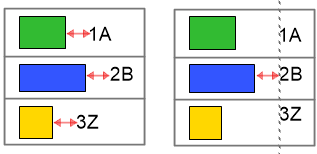
Align in column |
When Use auto constraints is selected, select this option to align objects using the distance indicated in the layout as the minimum distance between the objects.
Objects and text auto constrained without alignment (left) and with alignment (right) |
|
Constrain object distance from boundary |
Constrains the distance of the selected object from the left, right, top, and bottom cell boundary. See Data legend settings. For 2D objects, deselect the Fix width or Fix height option to scale the object horizontally or vertically to fit the bounding box when necessary. |
When you're done editing the layout, click Exit Data Legend Cell Layout.
If desired, change the legend's fill and pen attributes from the Attributes palette.
Data legend: Editing the title layout
Edit the title layout as desired. The layout must include the title frame and the Legend Title text field.
Select a legend, and from the Object Info palette, click Edit Title Layout. For a styled legend, see Editing plug-in object styles. The title layout displays in editing mode.
Alternatively, right-click the legend and select Edit Title Layout.
As described in Data legend: Editing the cell layout, you can add text and 2D geometry objects and set constraints for them. For example, add a filled rectangle to give the title frame a contrasting color.
To adjust the margin between the title contents and the title frame, select the frame and edit the margin in the Object Info palette. The frame cannot be deleted from the layout.
When you're done editing the layout, click Exit Data Legend Title Layout.
