Concept: Drawing with snapping
Difficulty level: Intermediate
SmartCursor snapping allows you to draw with precision in Top/Plan or 3D views. A variety of settings and options facilitate drawing with snapping; used in conjunction with drawing tools, SmartCursor uses snap indicators, hints, extension lines, text (SmartCursor cues), and sounds, and then precisely snaps the cursor based on the snapping types enabled in the Snapping set.
Several snap types and snapping indicators assist with snapping. In a complex drawing where multiple snap points are within selection range, use the snap loupe to temporarily zoom into the drawing view near the cursor and obtain the correct snap.
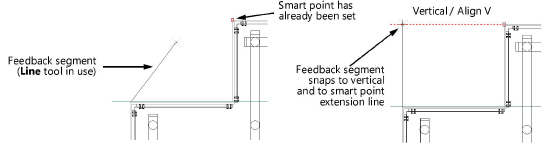
Snapping is used with the feedback segment that displays while drawing with most tools. Some SmartCursor cues display when a first point has already been found, and a second point is being sought. These two points form a line called the feedback segment. This segment forms an angle and length which the SmartCursor uses for some of its snaps. For a line, the feedback segment is the same as the line being drawn. However, for other objects, the interactive image does not lie on the feedback segment. The SmartCursor works on the feedback segment created from the first to the second points (for polygons, from the previous point to the current point).
For example, when drawing a line, you may want it to be vertical and also aligned with another point in your drawing. To do this, first enable angle snapping (because it snaps to the vertical), along with smart point snapping. Set a smart point with extension lines on the point to align to. The feedback segment of the line snaps to the vertical and to the smart point, and a second click finishes drawing the line.
Several areas in the program control the various aspects of snapping.
|
Functionality |
Location/description |
|
Enable/disable snapping tools |
Snapping set; see Setting snapping parameters |
|
Enable/disable individual snapping parameters |
Popovers for each snapping tool and general snapping settings, accessible in the Snapping set |
|
Change the appearance of snap points and indicators |
Interactive Appearance Settings dialog box; see Interactive appearance settings |
|
Enable/disable snap box, selection box, and acquisition hints |
Interactive pane of Vectorworks preferences |
|
Change the appearance of the snap box and selection box |
Interactive pane of Vectorworks preferences |
|
Save snap settings as a script |
Custom Tool/Attribute command; Creating custom tool/attribute scripts |
|
Assign snapping shortcut keys |
Keys tab of the Workspace Editor; Modifying special shortcuts |
|
Snapping to objects in other layers or in classes or layers set to gray |
Class and layer option commands; Setting global visibility with class and design layer options |
