Concept: Using Vectorworks Cloud Services
Difficulty level: Beginner
Vectorworks Cloud Services is a cloud-based platform that seamlessly integrates a number of applications with Vectorworks to keep your projects synchronized across an ecosystem of tools:
Vectorworks Cloud Services desktop app enables you to conveniently save your work and collaborate with team members via bi-directional syncing capabilities, and let Cloud Services do the heavy lifting in the background with Cloud computing
Cloud Services web portal enables you to use any web-enabled device to browse, share, and review documents with collaborators, and easily create visualizations, presentations, and interactive experiences for your clients
Vectorworks Nomad iOS and Nomad Android mobile apps allow you to view and mark up drawings onsite or on the go, and capture existing buildings and sites with reality capture tools—all from the convenience of your mobile device
Vectorworks Odyssey app for Meta Quest headsets allows you and your clients to view models using virtual reality
With Cloud Services, you can collaborate with team members and clients in real time—even if they haven't installed Vectorworks—by sharing folders, PDFs, interactive 3D models, and panoramic images. With project sharing workflows and cloud-based document review, multiple stakeholders can annotate and approve PDFs and models through shared links.
You can offload time-consuming tasks like rendering, PDF generation, and model processing to the Vectorworks Cloud, freeing up your computer for other work. Additionally, Cloud Services integrates with popular storage solutions like Dropbox, Google Drive, and Microsoft OneDrive, allowing you to consolidate your workflow in one place.
Processing on the Vectorworks Cloud is available only with a subscription or as a benefit of Vectorworks Service Select.
The following topics provide an introduction to the Cloud Services desktop app and web portal, which are easily used from your desktop alongside Vectorworks. For more complete information about how to use these features and about the extended capabilities in Cloud Services, including more information about the Nomad iOS and Nomad Android mobile apps' capabilities, and the Odyssey app for headsets, see the extensive Cloud Services online help system at cloud.vectorworks.net/portal/help.
Accessing Vectorworks Cloud Services
When you install the Vectorworks application:
The Vectorworks Cloud Services desktop app is installed automatically. If needed, you can go to the Cloud Services website (cloud.vectorworks.net/products) and download the latest desktop app installer for your operating system.
Within the Vectorworks application, the Cloud menu provides several commands, including Launch Vectorworks Cloud Services Website to open the Cloud Services web portal (cloud.vectorworks.net), that you can use to access and interact with Cloud Services.
The Vectorworks Nomad app is available from the Apple App Store and Google Play Store, and the Vectorworks Odyssey app is available from the Meta Store. The apps are also available from the Vectorworks products page (cloud.vectorworks.net/products).
Getting started with Vectorworks Cloud Services
The Vectorworks Cloud Services desktop app and and web portal play different but complementary roles within the cloud ecosystem.
The desktop app enables you to view jobs in the cloud processing queue, and to pause and restart synchronizing files between the cloud and your local computer.
The web portal enables you to share, review, present, and manage cloud content from anywhere.
The desktop app
When you install Vectorworks, the desktop app is downloaded and installed on your local computer as a separate application:
Mac: Top level of the Applications folder
Windows: C:\Users\<user>\AppData\Local\Programs\vectorworks-cloud-services
You can set a preference to have the desktop app start every time you launch Vectorworks, launch the app manually from its installation location, or the app will start automatically when you select Vectorworks commands that use the app to communicate with the Vectorworks Cloud.
The Cloud Services desktop app adds a Vectorworks Cloud icon to the task bar (Windows) or to the menu bar (Mac) when the app is in use.
When you open Vectorworks Cloud Services desktop app, you can:
Open the Vectorworks Cloud Services folder on your local computer
Launch the Cloud Services web portal
View your current storage quota and utilization
Manage the synchronization of files stored in the Vectorworks Cloud with the locally saved version
Display the job queue of the files sent for cloud processing
Settings
You can set app settings to customize your Cloud Services experience:
Start and stop the Cloud Services app with Vectorworks
Change the location of your local Vectorworks Cloud Services synchronization folder
Select items to synchronize to your local computer
Select the geographical region where your files are stored; it's important to select the region closest to your physical location for the best performance. The storage region can also be set in the web portal's preferences.
Integrate Cloud Services with external storage such as Dropbox, Google Drive, and OneDrive.
The web portal
Open the Cloud Services web portal by selecting Cloud > Launch Vectorworks Cloud Services Website in Vectorworks or by bookmarking or browsing to the site (cloud.vectorworks.net). From there, you can:
Browse and organize the files stored in your Vectorworks Cloud Services account
Share files and folders, set collaboration access, and create shareable links
Access cloud-generated items such as PDFs, interactive 3D/VGX models, rendered images, panoramas, boards, and tours
Use browser-based review tools so that collaborators can view, mark up, and comment on Vectorworks documents without installing Vectorworks
Manage presentation-oriented deliverables and other account-wide Cloud Services functions
Preferences
You can set preferences to customize your Cloud Services experience:
Select the geographical region where your files are stored
Customize the settings used to generate PDF files from Vectorworks files
Display and map fonts
Add a logo to brand your files and presentations
Control the types of notifications you receive from Vectorworks Cloud Services
Adding files to your Vectorworks Cloud account
You can upload Vectorworks files and other file types to your cloud storage account for easy access and sharing. The Vectorworks Cloud desktop app automatically syncs files between your cloud and desktop computer storage.
To add files from the Vectorworks application:
Do one of the following:
Select Cloud > Open Vectorworks Cloud Services Folder. The folder opens in Finder (Mac) or Explorer (Windows). Add the needed files to the Vectorworks Cloud Services folder.
Select Cloud > Launch Vectorworks Cloud Services Website, or sign in to your Vectorworks Cloud account at cloud.vectorworks.net. Then either click Upload files  or drag and drop one or more files directly into your web browser.
With a file open in Vectorworks, select File > Save As, and navigate to the Vectorworks Cloud Services folder.
After files are saved to the local Vectorworks Cloud Services folder and the cloud, changes are automatically synced between the local and cloud versions. You can monitor progress in the Sync activity tab of the Cloud Services desktop app.
Processing on the Vectorworks Cloud
Resource-intense processing, such as publishing files, rendering panoramic images, and creating animated movies, can be shifted to the cloud (cloud processing is available only with a subscription or as a benefit of Vectorworks Service Select). Vectorworks commands that offer cloud processing options include:
Import IFC (see Importing IFC files)
Import Revit (see Importing Revit)
Import Revit (Batch) (see Importing Revit family files as a batch)
Export Revit (see Exporting Revit)
Export Panorama (3D only) (see Exporting rendered panoramas)
Publish (see Batch publishing)
Create Movie (on the Object Info palette of an animation path object; see Creating a movie of an animation)
Solar Animation (on the Object Info palette of a heliodon object; see Creating interactive solar animations)
Other Vectorworks commands communicate with the cloud to support workflows that bridge the gap between the desktop and mobile apps:
Export to Morpholio Trace and Import from Morpholio Trace allow designers to seamlessly move Trace hand sketches into Vectorworks for modeling, and Vectorworks drawings or models into Trace for sketching (see Working with Morpholio Trace).
Import Reality Capture retrieves and filters reality capture files directly from your cloud storage (see Importing reality captures). The files are sorted by the date they were added, so your latest files are easy to find.
Commands in the Cloud Services web portal also offer cloud processing options and the ability to set auto-processing for features such as 3D model generation, PDF generation, Revit export, and some image processing. This allows you to run cloud jobs on a schedule and keep your exported files up to date as your Vectorworks model is evolving.
Tracking the status of jobs processed on the cloud
You can track the status of items being processed on the cloud in these locations:
Job queue tab of the Vectorworks Cloud Services desktop app
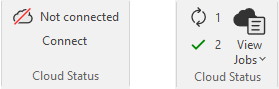
Cloud Status group on the Vectorworks View bar, which displays the number of jobs that are currently processing on the cloud and the number of jobs that completed processing in the last seven days. Click Connect (if Vectorworks isn't connected to the cloud) or View Jobs (if Vectorworks is connected). For more information, see Monitoring the status of jobs processed on the Vectorworks Cloud.
The Status dialog box on the web portal; click the Status button  to open it.
Sharing files, folders, and projects
Files, folders, and projects can be shared from the Vectorworks application, Cloud Services desktop app, and web portal. You can share .vwx files for use by colleagues who use Vectorworks, but you can also share sheet layers and worksheets, PDFs, 3D models, presentations, and other files for use by clients or other stakeholders. Some shared formats allow people to review and mark up files without installing Vectorworks. Your can share files differently depending where you share from.
Vectorworks application
The Share Document command exports selected sheet layers and worksheets to Cloud Services and shares the document with clients. Using any web-enabled device, recipients can open the document in the Vectorworks Cloud Document Reviewer, where they can see information associated with the objects, add comments to the sheets, and view worksheets (see Sharing files in the Vectorworks Cloud Document Reviewer).
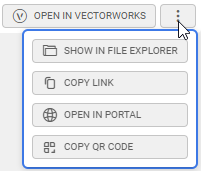
Files that are successfully generated by a cloud job have quick sharing options in the overflow menu of the Cloud Job Status dialog box. The Copy Link and Copy QR Code commands copy the link or QR code image to the clipboard for easy pasting into emails or other communication methods (see Displaying cloud job status and performing follow-up actions).
For ConnectCAD users, the Share Report command extracts information about devices, equipment items, sockets, and circuits from the saved Vectorworks file and uploads a report to the Vectorworks Cloud. This report can be shared with clients, venues, installation managers, installers, and more (see Sharing ConnectCAD reports).
Cloud Services desktop app
The Cloud Services desktop app provides an option to create shared links from the Sync activity pane as soon as a file is uploaded to the cloud or downloaded to your local computer.
Cloud Services web portal
From the web portal, you can share files and folders with a recipient through your Vectorworks account, or you can share a link that enables multiple recipients to access the information.
3D models (.vgx files) shared via link use timed VR codes for viewing in the Vectorworks Odyssey app for Meta Quest.
To use the Vectorworks project sharing feature, you must place a .vwxp file in a folder shared via a Vectorworks account with "Sync and Edit" permission. This file is then synced to the Vectorworks Cloud Services folders of the recipients. For more information, see:
Project sharing best practices
Online help for Cloud Services at cloud.vectorworks.net/portal/help/
Getting help for Vectorworks Cloud Services
If you have questions about performing tasks in Cloud Services, a robust help system is available to assist you: cloud.vectorworks.net/portal/help/.
To open Cloud Services help do one of the following:
From the Vectorworks Cloud Services desktop app, click the overflow menu icon and select Help.

From the Cloud Services web portal, click the help icon.

From the Vectorworks application, select Cloud > Help.
