 Landmark Style Manager
|
Command |
Workspace: Path |
|
Landmark Style Manager |
Design Suite: AEC Landmark: Landmark |
The Landmark Style Manager functions as a hub for viewing and editing all plant, landscape area, and/or hardscape styles in a drawing (depending on the object type filter applied). From this palette, you can edit resources present in the file even if they are not yet placed on a design layer. You can edit an individual object style or batch edit multiple styles. As a web palette, the Landmark Style Manager can remain open while you work in the file, so it can easily be used as a style palette for the project. A command within the palette lets you activate a style for placement with the appropriate tool.
To use the Landmark Style Manager:
Select the command.
The Landmark Style Manager opens; depending on the object type filter, it lists all plant, landscape area, or hardscape styles in the file.
Click to show/hide the parameters.Click to show/hide the parameters.
|
Parameter |
Description |
|
Object type filter |
Select whether to display and edit plant styles, landscape area styles, or hardscape styles. All styles of that object type that are available as resources in the file are listed below. You can change among the object types any time as you work. |
|
Reload |
Reloads the object styles list; this may be especially useful for plant styles after any changes to 2D and 3D geometry |
|
Column Settings |
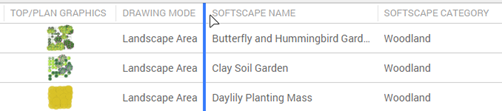
Lists the available parameters and tags for the selected object type; enter text in the search box to filter the list. Place a check mark beside the parameters to display as columns in the Landmark Style Manager. Choose among three different heights for the rows by clicking Small, Medium, or Large Row Height. To change the order of the displayed columns, click the column header above the styles list and drag it right or left to the desired location; a blue line to the left of the column being moved previews its location.
|
|
Object styles list |
Lists all the selected object type's styles in the file, or if column filters are used, all the styles that meet the filter criteria. The list offers a variety of controls for ordering and filtering the list and for editing and using the styles. You can edit a single style without selecting it first; click a parameter in one of the columns to edit it. To edit the columns of a selection of styles, click each row, or press Shift before clicking a second row to select all the styles in the range. Click a row a second time to deselect it. Selected styles are highlighted. Click the |
|
Object style commands
|
Select a style row, and click the Menu button to access commands: Place This [Object] Style activates the selected style in the Plant/Landscape Area/Hardscape tool, for immediate placement in the drawing. Duplicate [Object] Style opens the [Object] Style dialog box prefilled with a duplicate of the selected style. Edit Style with Dialog Box opens the [Object] Style dialog box to the selected style. Replace [Object] Style opens a style replacement dialog box; select a new style to replace all instances in the drawing of the current style. Copy External Data, available for plant styles only, opens the Copy External Data web palette, so you can copy plant data from a nursery into the selected plant style; see Copying external plant data. |
|
Objects that use the style |
Click the disclosure arrow to the left of a style name to display a list of objects that use that style. For plant styles, the list includes both plant instances and landscape areas that use the style. Click the |
|
Column filter |
Click a column header to open a sorting and filtering popover to facilitate selection and editing. To sort, select a sorting option; if the list is sorted by a column, an arrow displays in the column header. To filter the styles list, place a check mark beside the parameter values to include; enter text in the search box to filter the list.
|
|
Parameter editing popovers |
As you move the mouse over a style's parameters and tags, a pencil icon Select whether to apply the new default value to only the current style, to all selected styles, or to all object styles in the file, and click Apply.
|
|
Top/Plan and 3D Graphics commands (Plant styles only) |
To replace, edit, or remove the Top/Plan Graphics and 3D Graphics, click the pencil in the row and select the needed command. Replacing the geometry doesn't affect the plant style's spread or height, so you can batch edit the graphics for multiple styles independently of those values. Replace Top/Plan Graphics opens the Replace Top/Plan Graphics dialog box; see Replacing plant style graphics. Replace 3D Graphics opens the Replace 3D Graphics dialog box; see Replacing plant style graphics. Edit Top/Plan Graphics opens the plant style's current Top/Plan graphic in object editing mode. Edit 3D Graphics opens the plant style's current 3D graphic in object editing mode. Remove 3D Graphics removes the 3D graphic from the plant style. |
|
Add [Object] Style |
Opens the Select [Object] Style dialog box to add a style to the file and Landmark Style Manager. For plant styles, select whether to add the plant style based on its data or on plant style content. |
|
New [Object] Style |
Select a command to create the style. Depending on the object type (and for plants, the creation method selected), see: Creating plant styles from a list Creating a plant style from a selection |
 icon in the upper left corner of the Landmark Style Manager to select or deselect all styles in the list.
 icon beside an object to select it in the drawing, or click <Select all> to select all objects that use the style.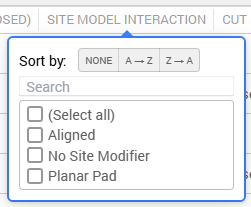
 displays; click the pencil to open a popover and edit the parameter. Set the parameter by style or by instance as described in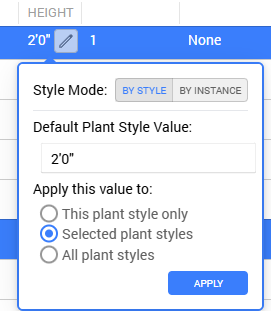
Edit the object's style parameters; the parameters are described in Plant settings, Landscape area settings, or Hardscape preferences.
The edits take effect immediately, and by style settings apply to all instances that use the style.
