Docking palettes
Most palettes, including tear-off tool palettes, web palettes, and detached tabs, can be docked to any of the four docking bars, drawing window edges (called "margins" on a Mac), and other palettes on both Windows and Mac systems. Once configured, palette positions can be saved; see Saving palette positions and settings.
The AI Assistant palette does not dock.
When an item isn't docked, it's considered "floating" and can be positioned anywhere on the screen. Floating elements remain in position if the application window is moved.
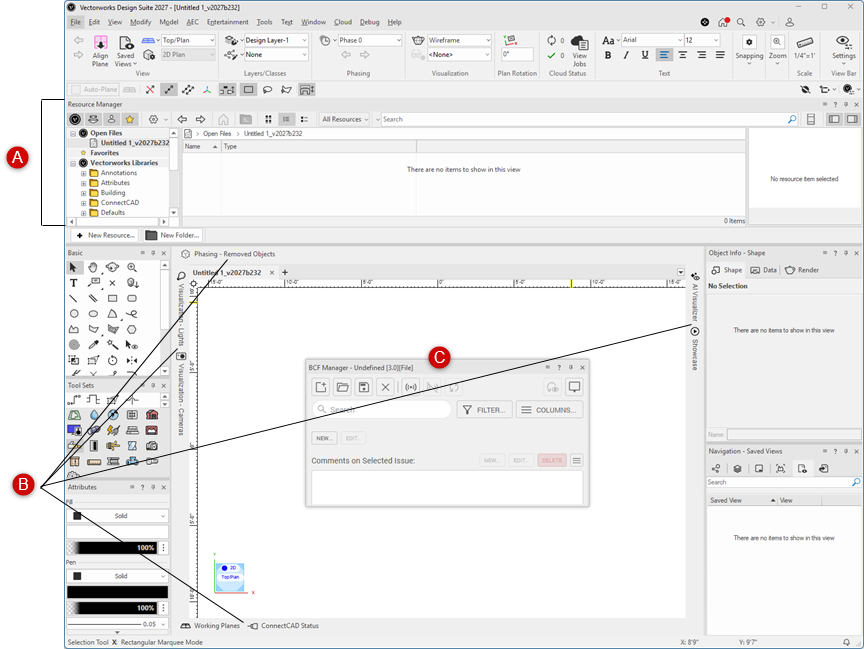
|
A: Drawing window edge with the docked Resource Manager palette (auto hide is turned off; it can be turned on to minimize the palette) B: Docked palettes in docking bars C: Floating palette |
On a Mac, when palette margins are in use, the drawing area cannot expand past a fixed size, which allows the palettes to remain out of the way. The palette margin area can be turned on and off in the Vectorworks preferences as described in Vectorworks preferences: Session pane. (See Managing multiple documents for information about docking and undocking document windows.)
To dock a palette, do one of the following:
Drag the title bar of the desired palette to a docking bar, drawing window edge, docked palette, or the title bar of a floating palette.
In Windows, a docking guide displays, with arrows and palette outlines to indicate potential docking positions. Release the palette when it's previewed in the desired position.
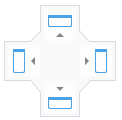
On a Mac, the docking bar, window margin, or edge of the palette is highlighted blue to indicate the location of the palette upon docking. Release the palette over the highlighted location.
From the title bar of a palette or tab, click the Utility menu, select Send to, and then select the docking bar where you want to dock the palette.
If multiple palettes are attached to a docking bar, you can rearrange their order by dragging docked palettes before or after other docked palettes.
The following video shows multiple ways to dock palettes in Windows.
Alternatively, to dock a palette to a drawing window edge in Windows, do one of the following:
Double-click the title bar of a floating palette or tab.
Right-click the title bar of a floating palette or tab and select Docking from the context menu.
The palette is docked to the left window edge. If the palette was previously docked to a different window edge, the palette is docked to that window edge again.
To prevent a palette from docking, do one of the following:
In Windows, hold down the Ctrl key while dragging the palette; docking guides do not appear on drawing window edges or other palettes. Docking guides still appear on docking bars, where palettes can be docked.
On a Mac, hold down the Option key while dragging the palette; blue highlighting does not appear.
Disabling docking
In Windows, docking is enabled by default in the Vectorworks preferences; deselect the option to disable docking. See Vectorworks preferences: Session pane.
On a Mac, docking floating palettes to each other is enabled by default; to disable docking to other floating palettes, deselect Window > Palette Options > Floating Palettes Can Dock to Each Other.
Undocking palettes
To undock a palette or tab, drag the title bar of the palette or the tab label to the desired location.
In Windows, to undock a palette or tab from a drawing window edge, do one of the following:
Double-click the title bar of a docked palette or tab.
Right-click the title bar of a docked palette or tab and select Floating from the context menu (some palettes only).
With auto hide turned on (see Hiding palettes temporarily), drag the title bar to the desired location.
For more information about tabs, see Detaching and returning palette tabs.
