Concept: Using textures
Difficulty level: Intermediate
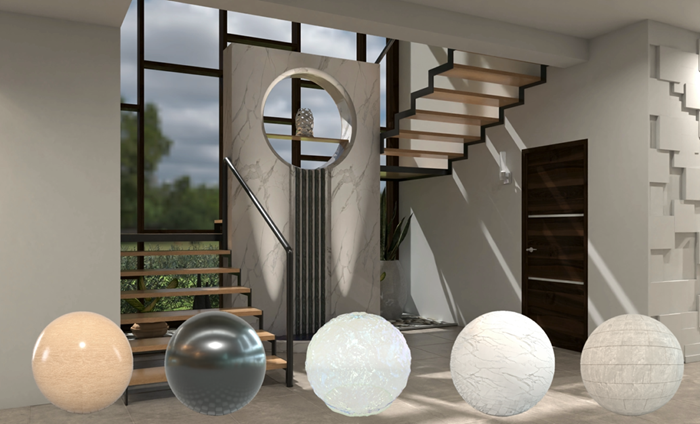
To make the 3D objects in a model look more realistic, apply textures to them. Textures represent real-world materials with qualities such as color, light reflectance, opacity, pattern, roughness, and so on. Textures must be rendered in a Shaded, Renderworks, or Realistic RS render mode/style, and they only display in 3D views. They can be used to bring designs to life, and when used with lighting and other rendering techniques can make designs look conceptual, photorealistic, and anything in between. Many textures are provided in the Vectorworks Libraries. You can also import textures from other sources, and create your own custom textures. Texture resources are saved with the file and display in the Resource Manager and Resource Selector.
Vectorworks has two kinds of textures:
PBR textures: Physically Based Rendering (PBR) achieves a photorealistic appearance by using algorithms and formulas based on real-world optics and material to simulate the physics of light and material interactions. PBR is an industry standard used in architectural visualization, movies, video games, and other fields where realistic digital imagery is required. See PBR textures for more about what this means within Vectorworks.
Legacy Renderworks textures: The Vectorworks proprietary Renderworks texture format is compatible with files created in versions of Vectorworks prior to 2027, and these textures work best with Shaded and Renderworks render modes. This format uses color, reflectivity, transparency, and bump shaders to create textures. These textures will be phased out over time. See Legacy Renderworks textures.
It's possible to convert a legacy texture to PBR, though there will be a loss of some texture features, because not all properties can be mapped between the formats. When converting from a legacy to a PBR format, an alert describes the changes that will be made, so you can complete or cancel the conversion. The conversion can't be undone; consider saving a duplicate of the original texture before converting.
Texture resources can be applied to 3D objects in a variety of ways depending on the object type and whether you want to apply a texture overall or to only specific faces or parts. Apply textures directly to a selected object or a selected face, to a class (and therefore to objects assigned to that class), or to a material (and therefore to objects that use the material).
Mapping specifies how a texture is applied to an object; different types of objects require different mapping types. Map a texture to an object from the Object Info palette or with the Attribute Mapping tool.
Textures can be associated with surface hatches to give the appearance of a texture in a monochromatic, hidden line rendering. See Hidden line rendering with surface hatches.
